
How to Print Labels in Multiple Columns
Route: Label Generator - [ How to Print Labels in Multiple Columns ]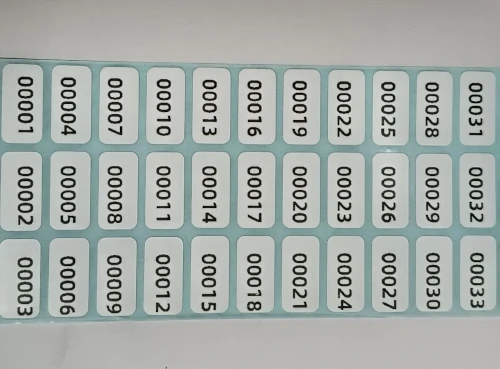
If you need to print labels in multiple columns, such as the 3-column layout shown in the image above, you can use the [ Multi-column Printing Labels ] function provided by DoingLabel.
How to Set the Print Size
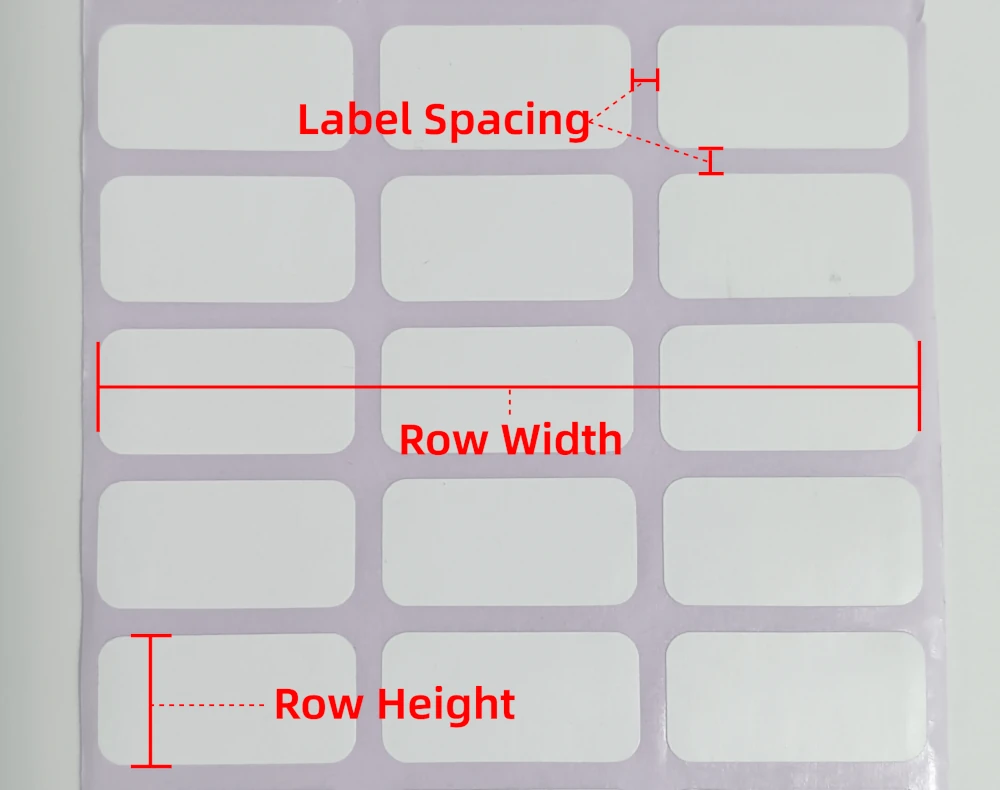
Before printing, you must set the print size in DoingLabel, which will generate the print page based on your settings. You also need to adjust the paper size in your system print settings. These two settings must match exactly, otherwise the print output will be misaligned.
Set Print Size in DoingLabel
- Column Count
This refers to how many labels are printed per row. Set it according to the number of columns on your label paper, e.g., 2-column printing, 3-column printing.
- Row Width
The total width per row equals the sum of all label widths in one row plus the spacings between each label. Example (3-column printing as shown above): Each label width = 20 mm, spacing between labels = 2 mm , Total width per row = (20 × 3) + (2 × 2) = 64 mm .
- Row Height
The height of each individual label.
- Label Spacing
The distance between adjacent labels.
Adjust Paper Size in System Print Settings
In your system print settings:
Set the label paper width equal to the [Row Width] above (note: this is not the width of a single label). For the 3-column example above, the paper width = 64 mm.
-
Set the label paper height equal to the [Row Height] above.
For detailed instructions on setting print size in system settings, refer to the section about print size configuration in: How to Fix Issues Like "Incomplete Printing" or "Misaligned Printing"?
- Kindly refrain from reposting this article unless you have obtained permission.
- This is a translated article. Should you find any translation mistakes or content errors, please refer to the Original Article (Chinese), which takes precedence.
- Due to ongoing version iterations, the feature details and interface screenshots included in this article may not be updated in a timely manner, leading to potential discrepancies between the article content and the actual product. For the most accurate information, please refer to the features of the latest version.