
How to Creater the Serial Number
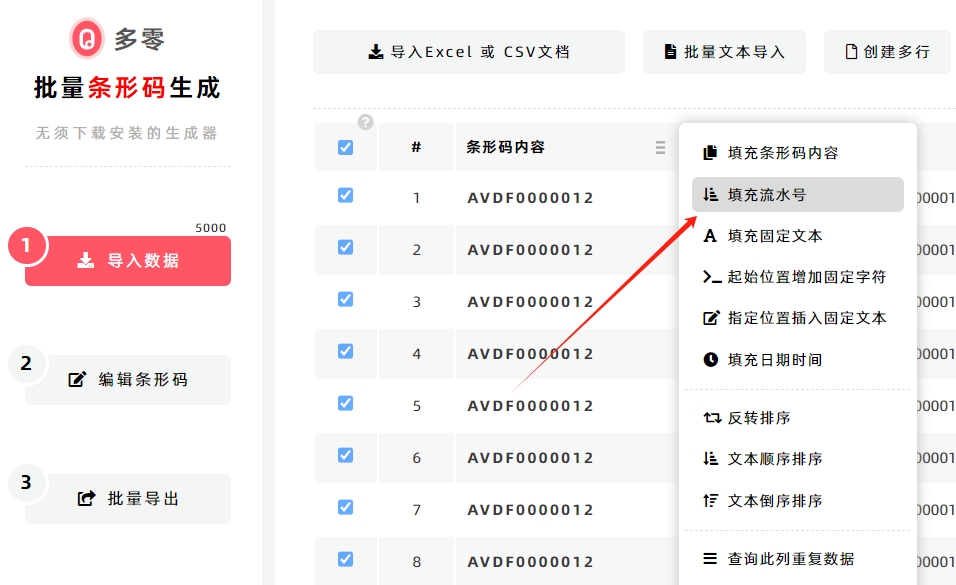
Route: Batch Barcode Generator - [ How to Creater the Serial Number ]Move your mouse to the column header of the column where you want to populate serial numbers. In the pop-up menu, click [Fill Serial Numbers]—a serial number settings window will appear. Configure the corresponding parameters, and serial numbers will be generated in the current column.

Set a Custom Increment Value
By default, serial numbers increase by 1 sequentially. If you want serial numbers to increment by a value other than 1:
Modify the [Step Value] field.
- Example 1: To generate even-numbered serial numbers, enter "2" as the increment.
- Example 2: To create serial numbers with an interval of 10 (e.g., 10, 20, 30...), enter "10" as the increment—each generated serial number will differ by 10.
Add Fixed Text to Serial Numbers
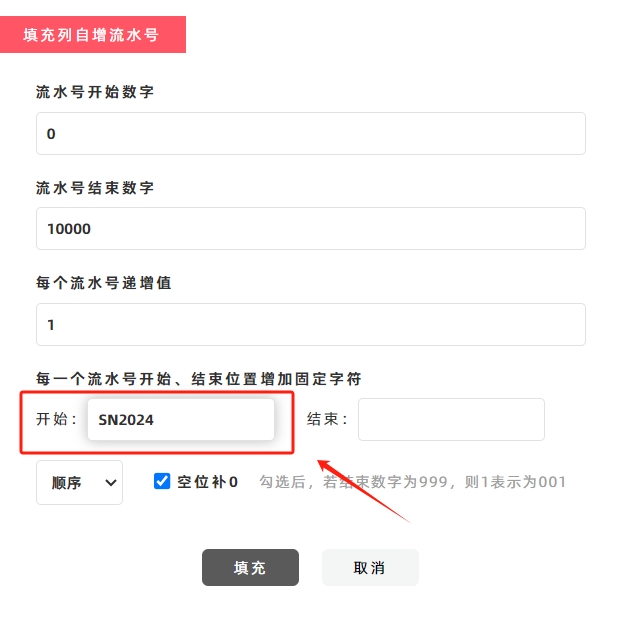
If you want to add specific text to the start or end of the generated serial numbers: Enter the desired text in the [Start With] field (for text at the start) or the [End With] field (for text at the end).
Example: Generate Registration Code Serial Numbers
To create serial numbers in the format [SN202400001] (where "SN2024" is fixed text):
- Enter "SN2024" in the [Start With] field.
- The program will automatically add the prefix "SN2024" to the beginning of each generated serial number (see the diagram below for reference).
- Kindly refrain from reposting this article unless you have obtained permission.
- This is a translated article. Should you find any translation mistakes or content errors, please refer to the Original Article (Chinese), which takes precedence.
- Due to ongoing version iterations, the feature details and interface screenshots included in this article may not be updated in a timely manner, leading to potential discrepancies between the article content and the actual product. For the most accurate information, please refer to the features of the latest version.