
Unable to Import or Upload Excel Files?
Route: FAQ - [ Unable to Import or Upload Excel Files? ]If you can open an Excel file normally on your local computer but encounter persistent errors when importing or uploading it to DoingLabel, the issue may stem from one of the following causes:
1. Interference from Data Security Software or Non-Standard File Content
Your computer may be running data loss prevention (DLP) software, or the Excel file may have been saved with special encoding. Additionally, hidden elements within the Excel file—such as formulas, shapes, or macros—can prevent DoingLabel from reading it properly.
Solution: Convert the Excel file to a CSV file before importing.
DoingLabel supports both Excel and CSV imports:
- For Excel files: DoingLabel uploads them to a remote server for parsing. Files are not stored on hard drives—they are only temporarily held in memory and destroyed immediately after processing.
- For CSV files: DoingLabel parses and reads them only in your local browser—they are never uploaded to the remote server.
If you have strict data security requirements, import CSV files instead.
2. Actively Encrypted Excel Files
DoingLabel cannot parse password-encrypted Excel files. Decrypt the file first before uploading.
3. Passively Encrypted Excel Files
Enterprises or organizations with strict data security policies often use DLP software to automatically encrypt internal files (to prevent data leakage), typically via "encryption on save" and/or "encryption on external transfer".
- If encryption is triggered only on external transfer: Convert the Excel file to CSV. Since DoingLabel parses CSV files locally (no external upload), the "encryption on external transfer" rule will not be activated.
- If encryption is applied on save: Contact your network administrator for a solution.
4. Importing Non-Excel Files
DoingLabel automatically filters out non-Excel files.
Files with the .xlsx or .xls extension, and with valid Excel file encoding. For example, renaming a .txt file to .xlsx or .xls will still be filtered out.
To avoid format errors, we recommend using DoingLabel’s official Excel/CSV templates: Fill in your business data in the template before importing.
5. Empty Excel Files
Files with no data (all cells empty) will be filtered out by the system.
Additionally: If you import an Excel file that was newly created or edited but not saved, the latest changes will not be imported—they only exist in memory, not on your hard drive. Always save the file after editing.
6. Importing Temporary Hidden Excel Files
When editing an Excel file, a transparent temporary file is generated to store edits temporarily. This is not a valid Excel file—do not import it.
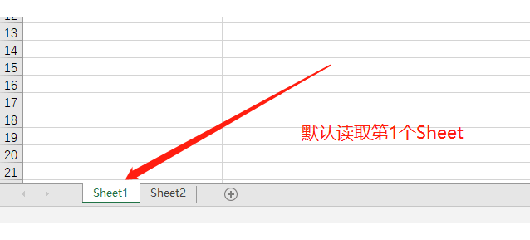
7. Target Content Not in the First Sheet
Excel files may contain multiple sheets. DoingLabel’s import tool defaults to reading only the first sheet. Before importing, verify that the first sheet contains your intended data.
8. File Size Exceeds 2MB
DoingLabel’s tests show that a template-based Excel file with 10,000 rows of data is approximately 0.3MB—2MB is sufficient for most use cases.
If your file exceeds 2MB:
- Delete redundant data.
- Check for and remove embedded images.
9. Corrupted Excel Files or Hidden Objects
Files may become corrupted during editing, saving, or transfer. Hidden elements (e.g., formulas, shapes, macros) can also cause parsing failures.
If the file opens normally locally but fails to import, convert it to CSV and try again.
Why does garbled text appear when importing a CSV file? How to fix it?
A CSV file is essentially a plain text file. Plain text files require a specified encoding (also called character set) for creation and parsing, such as UTF-8, GB18030, GBK, etc. Garbled characters occur when different character sets are used for creation and parsing. For example, a CSV file saved in UTF-8 will show garbled text if parsed with GBK.
Therefore, when you import a CSV file into DoingLabel, you need to specify the encoding used to create the CSV. In most cases, DoingLabel automatically detects the CSV encoding and imports the file correctly. However, detection may fail occasionally.
If detection fails and garbled text appears, manually select the matching encoding from the CSV file encoding dropdown list, as shown in the figure below.
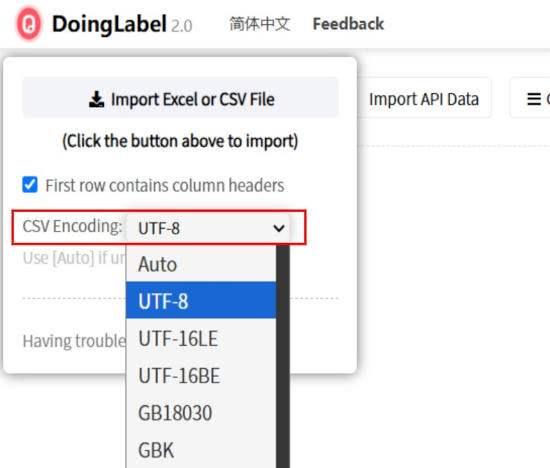
If you do not know the encoding of your CSV file, try each option until the file parses correctly.
In addition, Excel files are not plain text files, so they do not have character set garbling issues.
Learn More: How to Convert Excel to CSV?
If you still cannot import Excel files to DoingLabel, please provide feedback to DoingLabel. Include as much relevant information as possible—such as error messages, your operating system, and browser model—to help DoingLabel locate and resolve the issue quickly.
- Kindly refrain from reposting this article unless you have obtained permission.
- This is a translated article. Should you find any translation mistakes or content errors, please refer to the Original Article (Chinese), which takes precedence.
- Due to ongoing version iterations, the feature details and interface screenshots included in this article may not be updated in a timely manner, leading to potential discrepancies between the article content and the actual product. For the most accurate information, please refer to the features of the latest version.